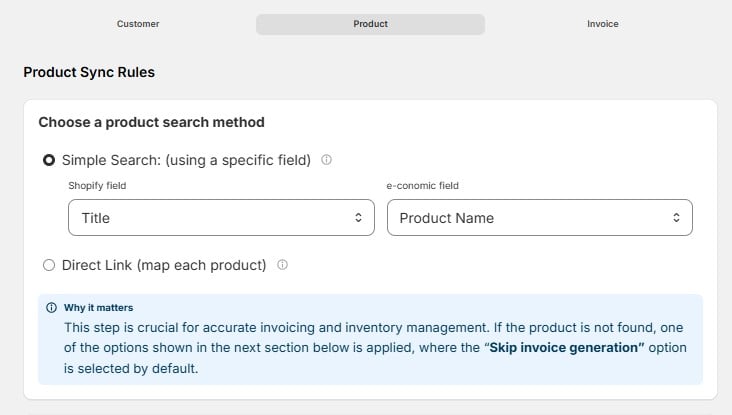
Choose a product search method
When an order comes in, the app needs to find the matching product in e-conomic so it can put the right product line on the invoice. There are two ways to do this:- Simple Search (using a specific field) – the app matches products by comparing one Shopify field to one e-conomic field. The default is Shopify Title matched against e-conomic Product Name. Select the most reliable field for identifying your products — something that is always filled out and unique to each product. If your SKUs are consistent, matching Shopify SKU against e-conomic Product Number is a strong choice.
- Direct Link (map each product) – instead of matching by a field, you manually link each Shopify product to its e-conomic product one by one. This gives you full control but takes more work, and every new product must be linked before it can sync.
This step matters for accurate invoicing and inventory. If a product cannot be found, the app falls back to the rule you choose in the next section — and the default fallback is to skip invoice generation entirely.
If product not found in e-conomic
This rule decides what happens when an order contains a product that the search method could not find in e-conomic: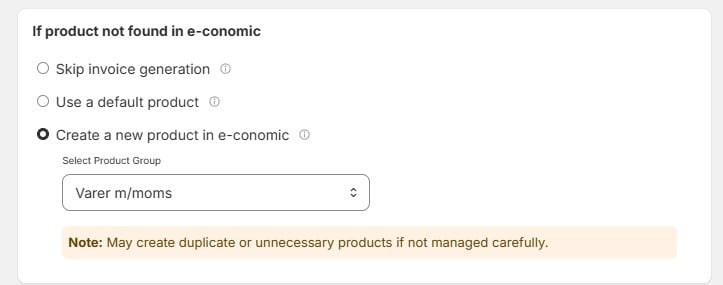
- Skip invoice generation (default) – the integration stops for that order and no e-conomic invoice is created. This prevents errors, but you need to manually review each order with a product mismatch.
- Use a default product – the invoice is created using a pre-selected e-conomic product. Only the product number of the selected default product is used for invoicing — all other details (name, price, quantity) still come from the Shopify order. This keeps the integration running, but the affected invoices may need manual review later.
- Create a new product in e-conomic – the app automatically creates the missing product in e-conomic from the Shopify product details and uses it on the invoice. You select which Product Group new products are placed in (for example “Varer m/moms” – goods with VAT), which determines the sales account for new products. This ensures all products sync.
Tax settings
Exclude Shopify Tax from e-conomic invoices – enable this checkbox to remove the taxes applied on the Shopify order when the e-conomic invoice is created. Only the relevant e-conomic tax is applied to the invoice instead.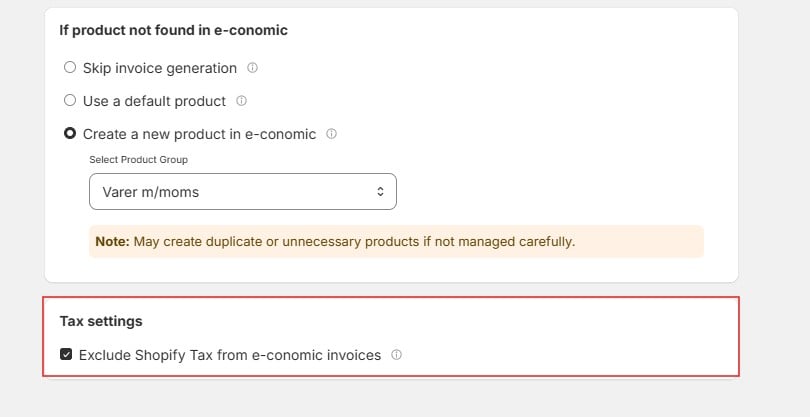
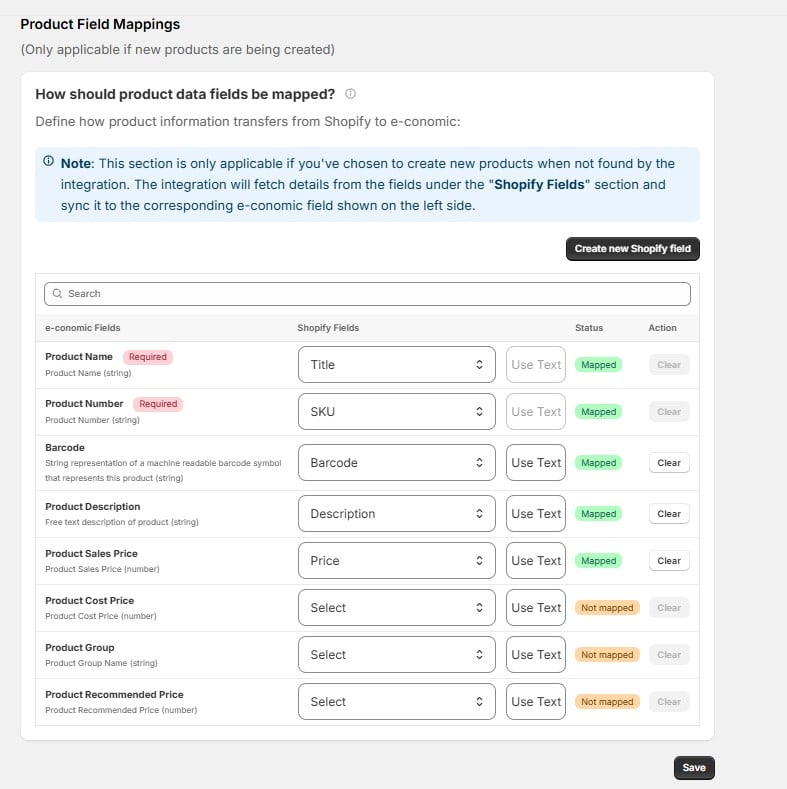
Product Field Mappings
This table only applies if you chose Create a new product in e-conomic above. It defines which Shopify product data is copied into which e-conomic field when a new product is created. The Status column shows the state of each field:- Mapped (green) – the e-conomic field is filled from the selected Shopify field.
- Not mapped (orange) – the field is left empty.
Optional fields you can map yourself:
- Product Cost Price – what the product costs you. Map this if you want margin reporting in e-conomic.
- Product Group – overrides the default product group per product, using a value from a Shopify field.
- Product Recommended Price – the recommended retail price.